Auditing who checked your email metadata in M365

  1. Background
  2. Accessing email message trace
    1. Overview
    2. Access email message trace via Defender XDR (Explorer)
    3. Access email message trace via Defender XDR (Advanced hunting)
    4. Access email message trace via Exchange Admin Center
    5. Analyzing the logs
  3. Conclusion

Background

One of the things organizations typically gain when moving into cloud, is visibility. Especially, when you’re using a single vendor (such as Microsoft), you can get very wide visibility into the organizations cloud infrastructure, assuming you have the privileges required (and you know how to navigate 10 different portals). For security professionals this is typically positive, because you can see what’s happening and how things have been configured. But it can have a negative impact as well, especially when thinking of privacy.

In this blog, I’ll have a brief look at one specific use case, that is related to the issue of visibility and how it impacts privacy.

The use case is this:

Certain people (e.g., SOC analysts) need to be able to see certain information about all emails being sent and received. This information includes:

  • Sender email address
  • Recipient email address
  • Subject of the email
  • Time (when it was sent)
  • Verdict(s) from the security solutions being used (did the email contain malware, attachments, URLs, etc.)

The problem is, that this information can be very sensitive. Even when you’re not able to view the contents of an email, being able to see sender, recipient and email subject means that this can be subject to very strict data privacy regulations. The question is:

  • Do you know who has access to this information?
  • Are you able to track who has accessed this information?

In an on-premise environment, this would normally not be a problem. Typically, only very limited people have access to email infrastructure, such as Exchange servers or 3rd party mail gateways. In the cloud, however, this may not be the case. If you’re using Exchange Online (and Defender for Office 365), you have different ways of accessing this information. You also have a fairly complex permissions structure (Entra ID roles, Exchange Online role groups, Defender XDR unified RBAC, etc.) that determines who can access the information. Then you have various audit and activity logs, but do you know which actions are actually being logged?

Accessing email message trace

Overview

My goal here is to do a simple test, as follows:

  1. Create an account with Global Reader role in Entra ID. The reason for using this role is that in my experience it is quite widely being used in organizations, but it’s not necessarily being identified as being a very sensitive role, because it cannot make any changes to the environment.
    • Note: I verified the tests also with an account with Security Reader role, which is a role with much more limited permissions. While Security Reader cannot access some of the views in the Defender XDR portal, the overall result is the same, as noted in the conclusion section.
  2. Verify, if the account can access the information described in the use case (sender, recipient, subject, etc.) and try to access the information via different portals.
  3. Verify (with an admin account) what kind of audit trail is left behind in the following logs:
    • Activity log of Defender for Cloud Apps (in Defender XDR portal)
    • CloudAppEvents table in Defender XDR advanced hunting
    • Microsoft 365 audit log (in Microsoft Purview portal or Defender XDR portal)

Access email message trace via Defender XDR (Explorer)

Let’s start from the Defender XDR portal, under Email & collaboration. Global Reader can access more or less everything here (regardless of whether Defender XDR Unified RBAC has been implemented or not).

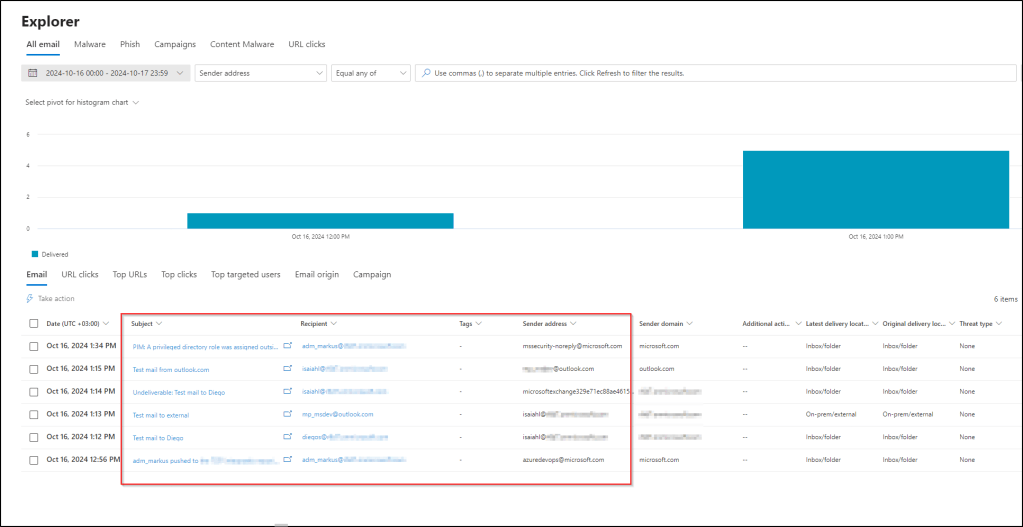
Now, let’s open Threat Explorer (Explorer in the navigation). Among other things, we can see the following information from all of the email processed by Exchange Online and Defender for Office 365:

  • Sender address (and domain)
  • Recipient address
  • Subject
  • Time
  • Delivery location
  • Threat type

By default, the view shows emails from the last two days (since the beginning of the day before). However, you can change the filter to search emails from further back.

Is there an audit trail for opening this view? Yes and no – the logs show a bunch of activities, most of which are related to RBAC. One of the log entries shows that the user opened the ThreatInstanceList, which relates to opening the Threat Explorer. However, it doesn’t give any information about what the user saw, i.e. what the filter was. So you cannot really determine, whether the user searched for emails for the last two days, or the last two weeks. Not very useful.
Now, let’s click one of the emails, which opens a more detailed view of an email.

Is there an audit trail for opening this view? Yes – in this case, the logs show that the user opened the specific email (the message ID is logged).

Access email message trace via Defender XDR (Advanced hunting)

Next, let’s look at Advanced Hunting. In the EmailEvents table, we can see all the information that we’re interested in right now (sender, recipient, subject, etc.).

Is there an audit trail for opening this view? No – I could not find any log entries of the query being made.

Access email message trace via Exchange Admin Center

Finally, let’s have a look at Exchange admin center (https://admin.exchange.microsoft.com) and go to Mail flow > Message trace. This allows us to query message trace logs, which contain the information that we are now interested in.
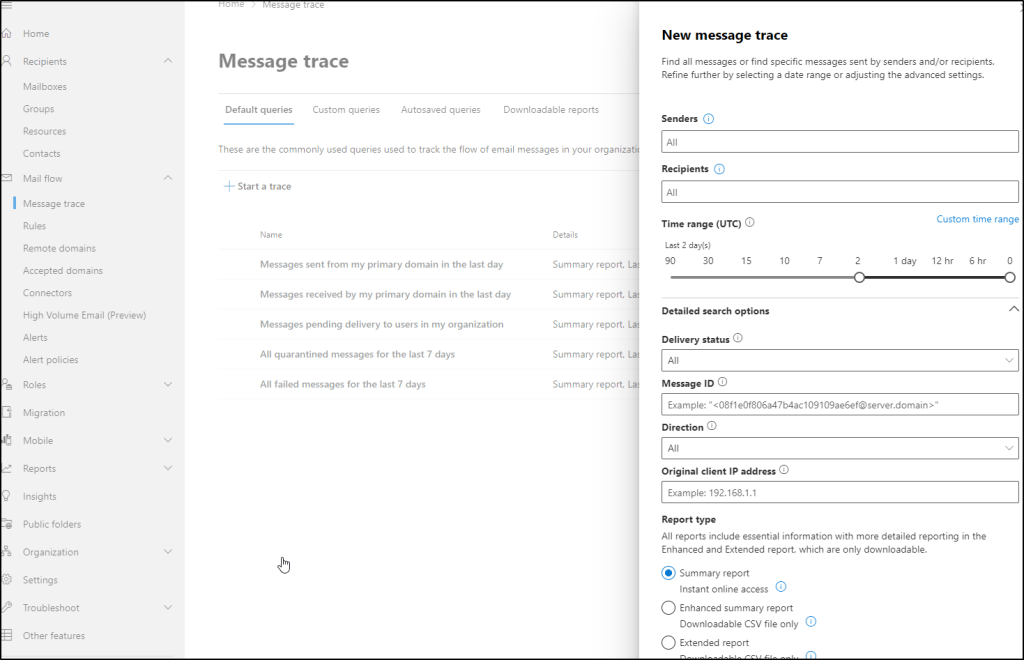
Let’s start a new message trace, and the results show again the same list of emails that we’ve seen before. Again, this is already sensitive information, because we can see the sender, recipient and subject of the emails.

Is there an audit trail for opening this view? No – using the message trace is not being logged. This is actually stated quite clearly also in the documentation (the message trace can be accessed also via Get-MessageTrace commandlet):

If we open one of the emails in the message trace, it will show us more information about the email delivery of that specific email.
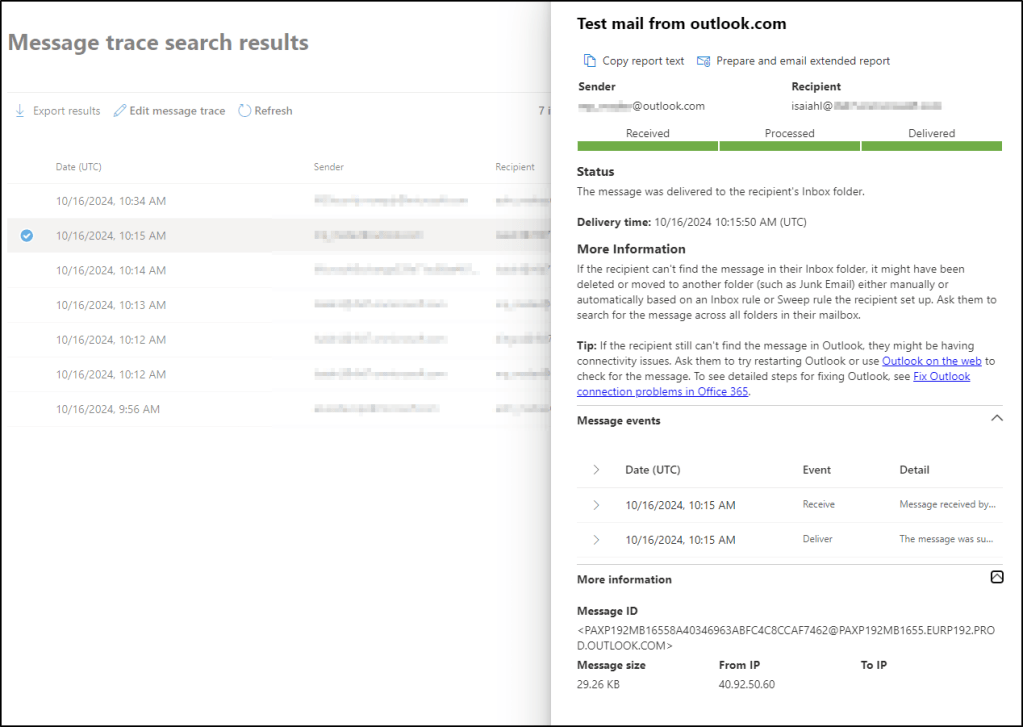
Is there an audit trail for opening this view? No – I cannot see any log entries from opening the email, which is expected as the creating the message trace itself is not being logged.

Analyzing the logs

For each of the tests above, I’ve noted whether I was able to find anything from the audit logs or not. A few words about the logs themselves:

Defender for Cloud Apps (MDA) has a very useful Activity log feature (accessible via the Defender XDR portal), which consolidates logs from all connected sources. While the UI can be a bit slow sometimes, it is intuitive to use, and works well when there is not too much data.

In this case, the activity log contains a lot of entries for the test period. However, there is not a lot of information here, and you need to individually dig into the raw data to actually see some details.

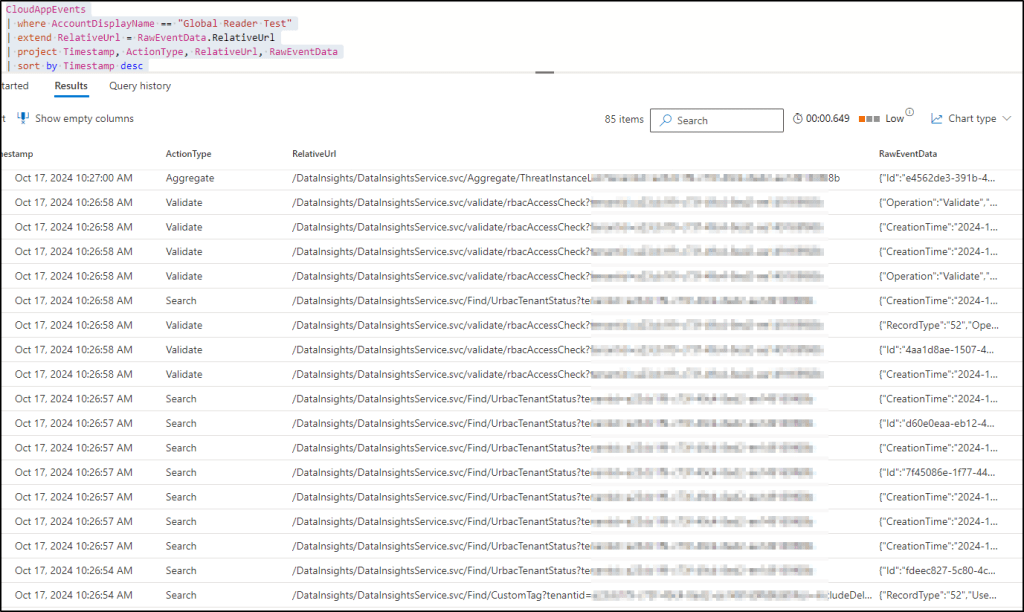
Therefore, a better way is to use advanced hunting and the CloudAppEvents table, which I used for most of the analysis:

You can also use the Microsoft 365 audit log, which can be accessed either through the Defender XDR portal or through Microsoft Purview portal. The audit log search is a bit cumbersome, and when doing cross-checking I did not find any additional information in the audit log that wouldn’t be available in the CloudAppEvents table. This makes sense of course, because Defender for Cloud Apps pulls audit logs from Microsoft 365.
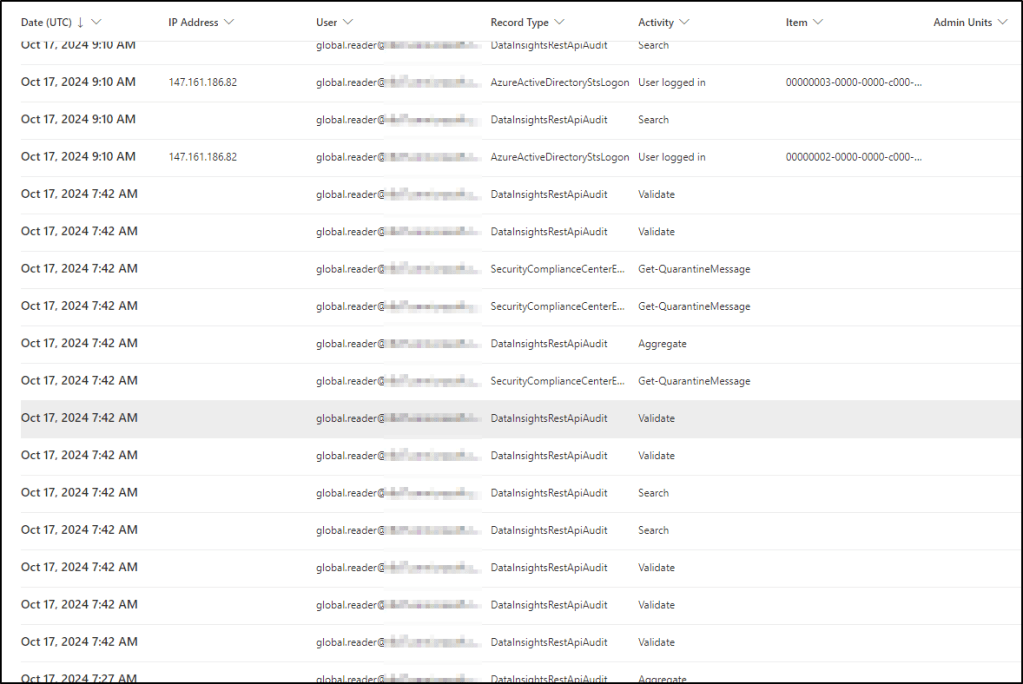
Finally, you can send the Microsoft 365 audit logs and/or the CloudAppEvents into Microsoft Sentinel and query the same information there. Because Sentinel runs on top of Log Analytics, you can actually audit all the queries being made there. However, that’s not what I wanted to test here (Sentinel also uses Azure RBAC permission model, and not Entra ID roles).

Conclusion

Overall, the audit logs are very limited when it comes to querying email message traces:

  • Queries made to the Exchange Online message trace through Exchange Admin Center are not being logged, even though the unified audit log ingestion has been enabled in Exchange Online.
  • Advanced hunting queries are not being logged, and you can see the message trace in the EmailEvents table (of course, you can a lot of other potentially sensitive information as well, such as device and network events from Defender for Endpoint).
  • Accessing the overview page the the Defender XDR threat explorer shows the email trace. While opening the page is being logged, it’s not clear what the user saw there. However, opening an individual email is being logged with the message ID.

Some final recommendations:

  • Global Reader has very wide read access (as its name suggests), but even Security Reader can use advanced hunting queries and access the Exchange message trace by default. Be mindful of this when assigning these roles.
  • Implement Defender XDR Unified RBAC, which allows more granular control of the permissions in Defender XDR. However, note that even after activation, users with the Entra ID roles will still have access to the data (you have to replace the Entra ID roles with the Defender XDR Unified RBAC roles).

Azure DevOps with Workload Identity Federation

  1. Introduction
    1. Why use workload identity federation with Azure DevOps?
  2. Converting an existing service connection
    1. Service principals that have been automatically created
    2. Service principals that have been manually created
  3. Creating a new service connection
    1. Creating new service connection (automatic)
    2. Creating new service connection (manual)
  4. Testing and conclusion

Introduction

Workload identity federation is a new feature in Entra ID that allows you to configure a workload identity in Entra ID to trust tokens from an external identity provider. In this blog post, I’m looking into how (and why) to use this feature with Azure DevOps service connections, which is a feature that was just announced to be generally available. If you need more information about workload identity federation in general, check out the Microsoft documentation. And if you need more information about workload identities in general, I highly recommend reading Thomas Naunheim’s series of blog posts on the topic.

Why use workload identity federation with Azure DevOps?

When you’re deploying resources into Azure from an Azure DevOps pipeline, you need to have a service connection to the target environment. Typically, the service connection is associated with a workload identity (service principal or managed identity) in Entra ID, which in turn needs to have the necessary Azure RBAC roles assignments to be able to make the changes to the target environment. The workload identities associated with the service connections are typically highly sensitive, because they need to have high privileges to the Azure resources. Earlier, this has posed some significant challenges:

  • If you’re using a service principal, Azure DevOps needs to be able to authenticate as the service principal, using a client secret or a certificate. If you let Azure DevOps to decide, it will default to client secret, although certificate would be more secure. You also need to take care of managing the lifecycle of these secrets and/or certificates, which can be challenging if you have an Azure DevOps organization with dozens or hundreds of projects, each having their own service connections and associated service principals.
  • The only way to use managed identities was to use self-hosted agents. Azure DevOps can leverage the managed identity of the resource where the agent is running on. For example, if you have an Azure virtual machine (or an on-premises server onboarded into Azure Arc) that is running your self-hosted agent, you can associate the service connection with the managed identity of the virtual machine (or Azure Arc server). However, you cannot use this approach with Microsoft-hosted agents. Also, if different development projects are sharing the same agent pools, then they would also be sharing the same managed identity to deploy the resources. In most cases you want different development teams to have dedicated workload identities associated with their own service connections, so that you can prevent the teams having privileges on each other’s resources. Whether you should share agent pools at all is another topic, but there are ways to do that securely, e.g. by using run-once container instances. That doesn’t resolve the issue with the shared managed identities though.

The promise of workload identity federation is that you can tackle both of these challenges:

  • You no longer need to maintain secrets or certificates, because Entra ID will trust the tokens issued by Azure DevOps. The tokens will be issued with properties that tie them to the specific service connection in a specific Azure DevOps project in a specific Azure DevOps organization. You simply need to link the service principal with the service connection by adding federated credentials to the app registration associated with the service principal, and you’re good to go.
  • You can also use federated credentials with user-assigned managed identities. While you’re not leveraging the typical benefit of managed identities in this case (= managing the credentials), the difference is that the federated credentials are managed through the Azure resource of the user-assigned managed identity, which means that you can delegate permissions to manage these credentials via Azure RBAC role assignments. Be careful though. Anyone with Contributor role to the managed identity can add federated credentials to it, which might be used by an adversary to move laterally or establish persistence.

Converting an existing service connection

If you have an existing service connection that is currently using certificates or secrets to authenticate, you can convert it to use workload identity federation instead. This is fairly straight forward, and because the workload identity used by the service connection will remain the same, you don’t need to change any of the permissions assigned to the workload identity. You just change the way it authenticates.

Service principals that have been automatically created

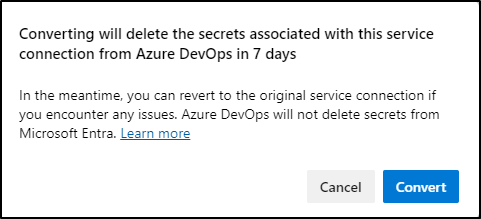
If you’ve originally created the service connection using the Service principal (automatic) option, then this is very straight forward. When you open the service connection, there is now an option to convert the service connection to use federated authentication, as shown in the picture below.

Clicking the Convert button will create the federated credentials for the workload identity, and after 7 days the original credentials will be removed from Azure DevOps. Note, that you still need to manually remove the secrets from the Entra ID app registration. But before doing that, make sure the federated credentials are working.

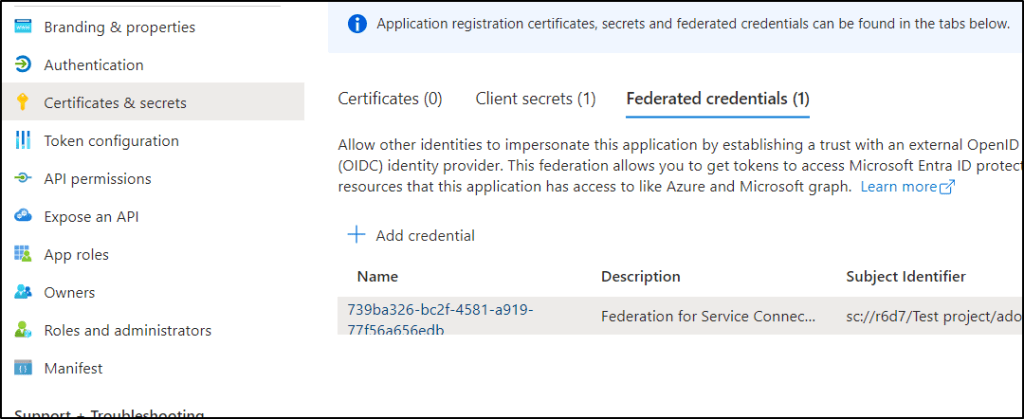
After the conversion, you can see that federated credentials have been added to the app registration associated with the service principal:

Once you’ve tested that the federated credentials work, remember to remove the secrets from the Entra ID app registration.

Service principals that have been manually created

If you’ve originally created the service connection using the Service principal (manual) option, then you have to do a bit more manual work here as well. But it’s still fairly straight forward.

You can see the difference, when you open the service connection in Azure DevOps. In this case, it shows you that you have to manually add the federated credential to the app registration.

To add the federated credential, you need the following information:

  • Organization name: this is the name of your ADO organization. You can see it in the URL, when you’ve logged into the organization:
  • Organization id: this needs to be in GUID format. One way to find it is to browse the marketplace for extensions. You can see the organization id in the URL:
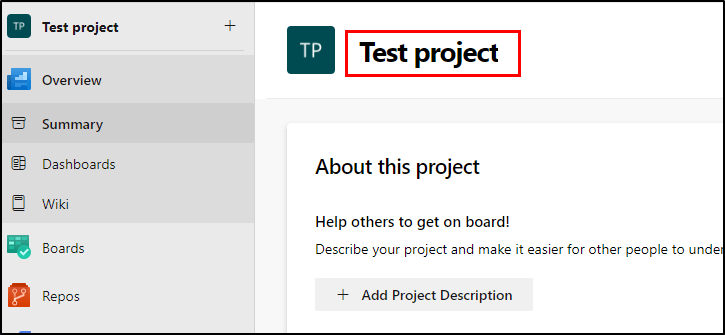
  • Project: name of your ADO project:
  • Service connection name: name of the service connection you’re about to update

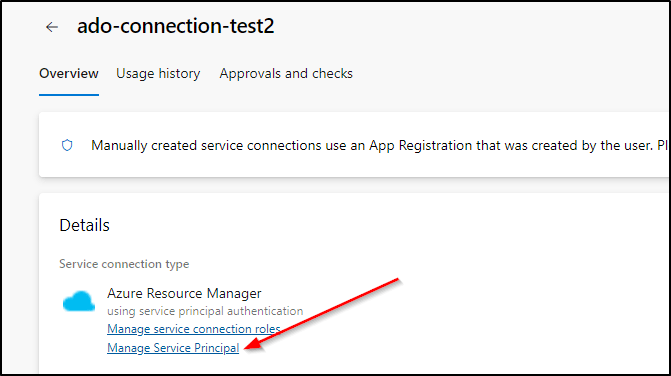
Once you’ve collected the information, you need to go to the app registration associated with the service connection. The easiest way is to use the link in the service connection configuration page. Note, that the link says Manage Service Principal, but actually takes you to the app registration, not the associated service principal.

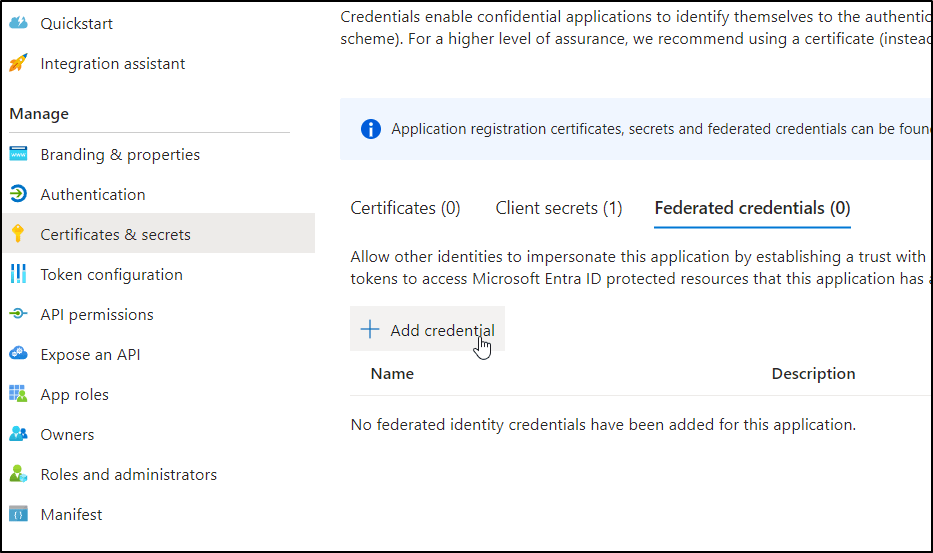
Under Certificates & secrets, click Add credential.

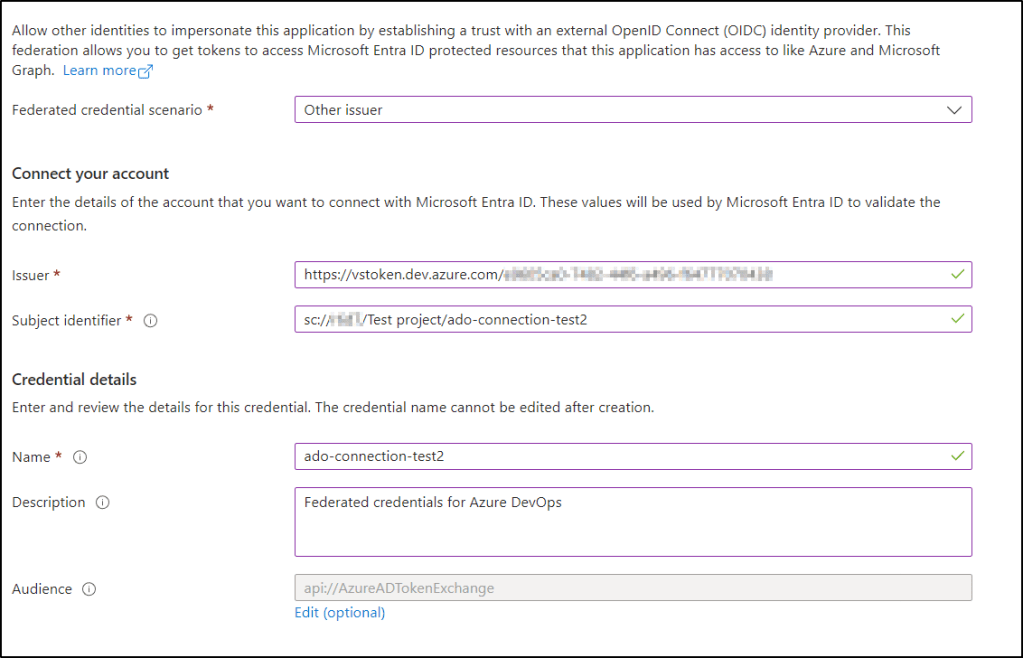
Add the required information collected earlier:

  • Federated identity scenario: choose Other issuer
  • Issuer: https://vstoken.dev.azure.com/<organization id>
  • Subject identifier: sc://<organization name>/<project name>/<service connection name>
  • Name: name for the credentials

Once you’ve added the credentials, you can go back to the service connection configuration page, and click Convert to finalize the configuration.

Again, that after you’ve verified that the new federated authentication works, you should go back and remove any earlier credentials (secrets/certificates) from the app registration.

Creating a new service connection

You can create new service connections with workload identity federation either automatically or manually (just as with service principals).

Creating new service connection (automatic)

As you would expect, using the automatic approach is very straight forward. You just create a new service connection for Azure Resource Manager, and select Workload Identity federation (automatic) as the authentication method.

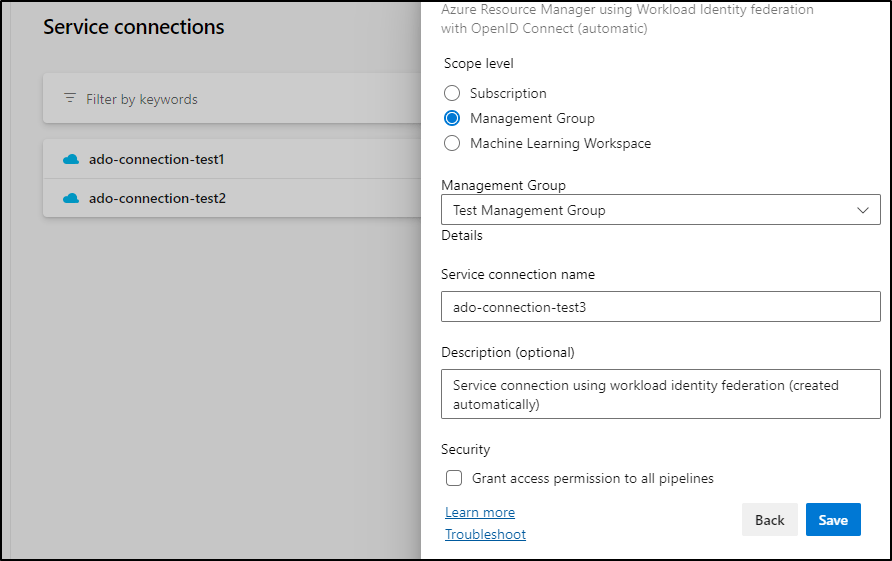
You need to select the scope and name for the service connection. Note! This will add Owner RBAC assignment for the workload identity to the chosen scope. If you use this method, I highly recommend removing the role assignment manually, and adding only the required role assignments for the service principal. Otherwise, you easily end up with service connections that have way too much privileges.

Another annoying thing with the automatic approach is, that the display name of the service principal (and app registration) is based on the organization name, project name and scope (e.g. management group or subscription). As result, you may end up with multiple service principals and app registrations with the same name, as seen in the picture below.

Luckily, you can change the name by opening the service principal (= Enterprise Application), and going to the Properties blade.

That’s really all there is to it!

Creating new service connection (manual)

Instead of using the automatic way, you can also manually create the workload identity first, and associate it with a service connection afterwards. You can either do this by creating an app registration (which also creates a service principal), or you can use managed identities. In this example I’m using managed identities, because as mentioned in the introduction, it has not been previously possible to use managed identities with service connections, except when using self-hosted agents. And if you skipped the introduction: be careful with delegating permissions to these managed identities.

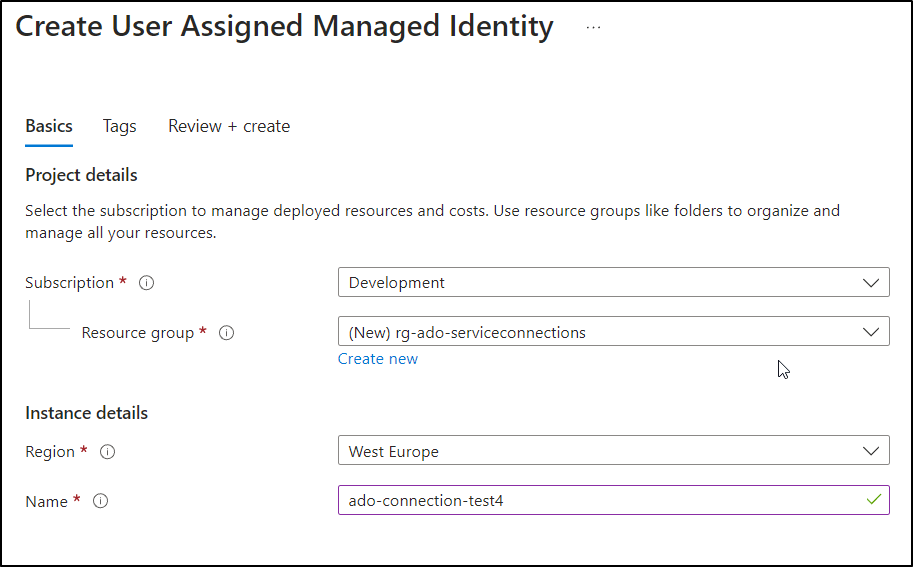
Let’s start by creating the (user-assigned) managed identity:

Once you’ve created it, you need to assign the required RBAC permissions to it. Again, grant only the permissions required by this specific project and this specific service connection. However, you do need to grant at least Reader role to the subscription or management group that you specify later on when creating the service connection.

The next step is to create a new service connection with Workload Identity federation (manual) and give it a name.

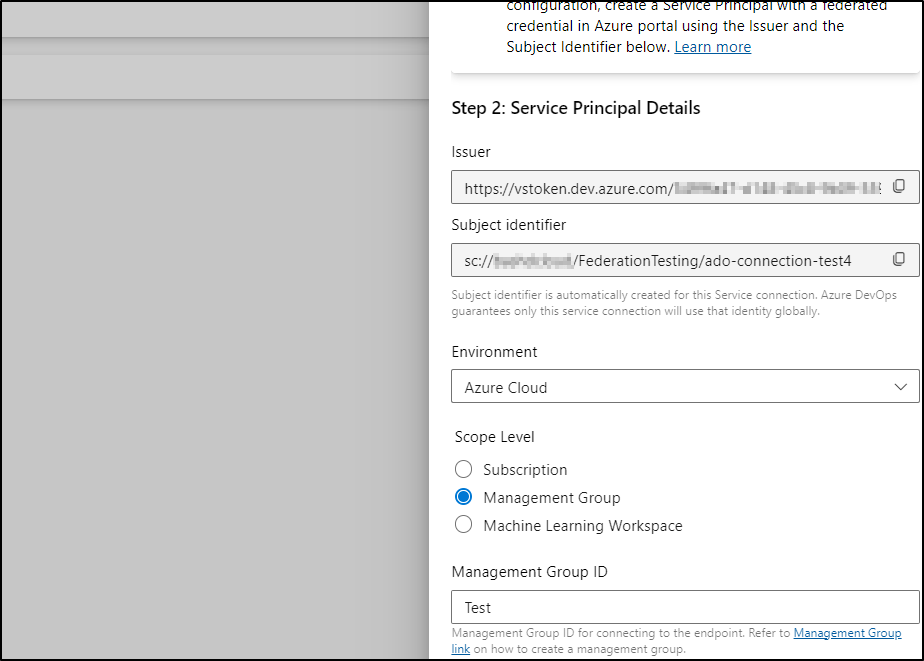
After you’ve given a name for your service connection, you’ll see a the following screen displaying the issuer and subject identifier information that you need to use when adding the federated credentials.

Add new federated credentials to the managed identity:

Again, use the Other option on the Federated credential scenario drop-down. Then just copy-paste the information from the wizard to the Issuer URL and Subject identifier.

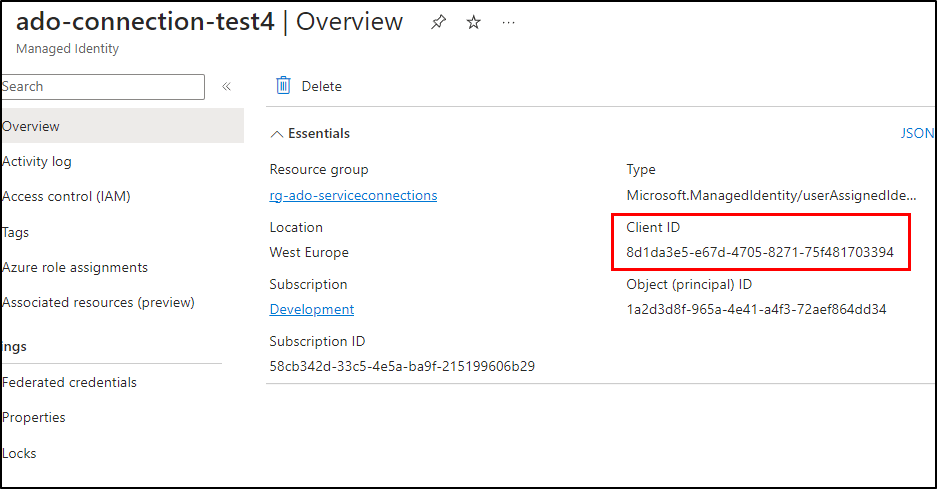
Take the client ID of the managed identity (and your tenant ID).

And add them to the wizard (again, it’s confusing that it says Service Principal Id):

Click Verify and save. And you’re done!

Testing and conclusion

Let’s do some testing. I’ll start by creating a very simple pipeline with the following definition, just to ensure we can connect to Azure Resource Manager using the newly created service connection (in this case I’m using the one I created using a managed identity).

The definition looks like this:

trigger: none

pool:
vmImage: ubuntu-latest

parameters:
# Service connection that is used for connecting to ARM
- name: serviceConnection
displayName: 'Service connection name'
type: string
default: 'ado-connection-test4'

steps:
- task: AzureCLI@2
displayName: 'Run script'
condition: succeeded()
inputs:
azureSubscription: ${{ parameters.serviceConnection }}
scriptType: pscore
scriptLocation: inlineScript
workingDirectory: $(Build.SourcesDirectory)
inlineScript: |
Write-Host "Let's get an access token!"
az account get-access-token --resource-type arm

When I run the pipeline, I can see that that the Azure CLI is indeed using federated credentials:

The sign-ins are also logged into AADManagedIdentitySigninLongs category in Entra ID. However, there’s no information about the credential type here.

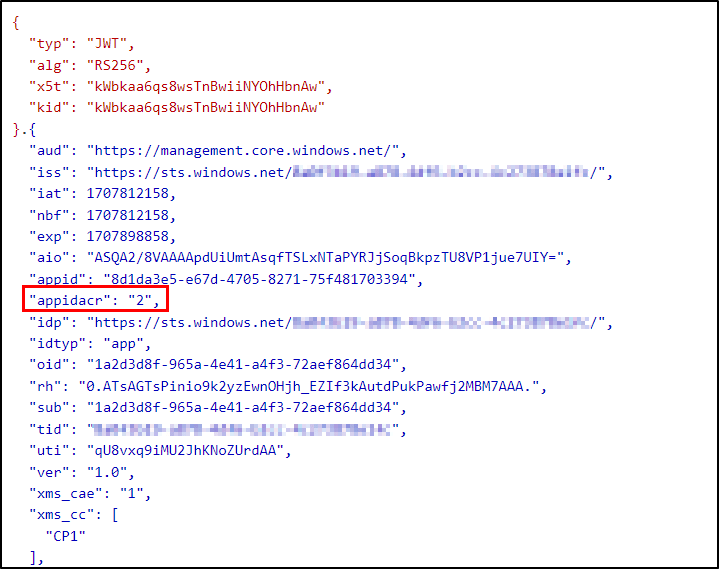
The access token shows client certificate as the authentication (appidacr: 2), so we don’t really see any indication of workload federated authentication here either.

Overall, workload identity federation is a great new feature, as you no longer need to maintain secrets or certificates for your Azure DevOps service connections. For obvious reasons, you still need to be careful about delegating access to the service principals (or managed identities) used by the service connections. But this is no different from what is was before.